




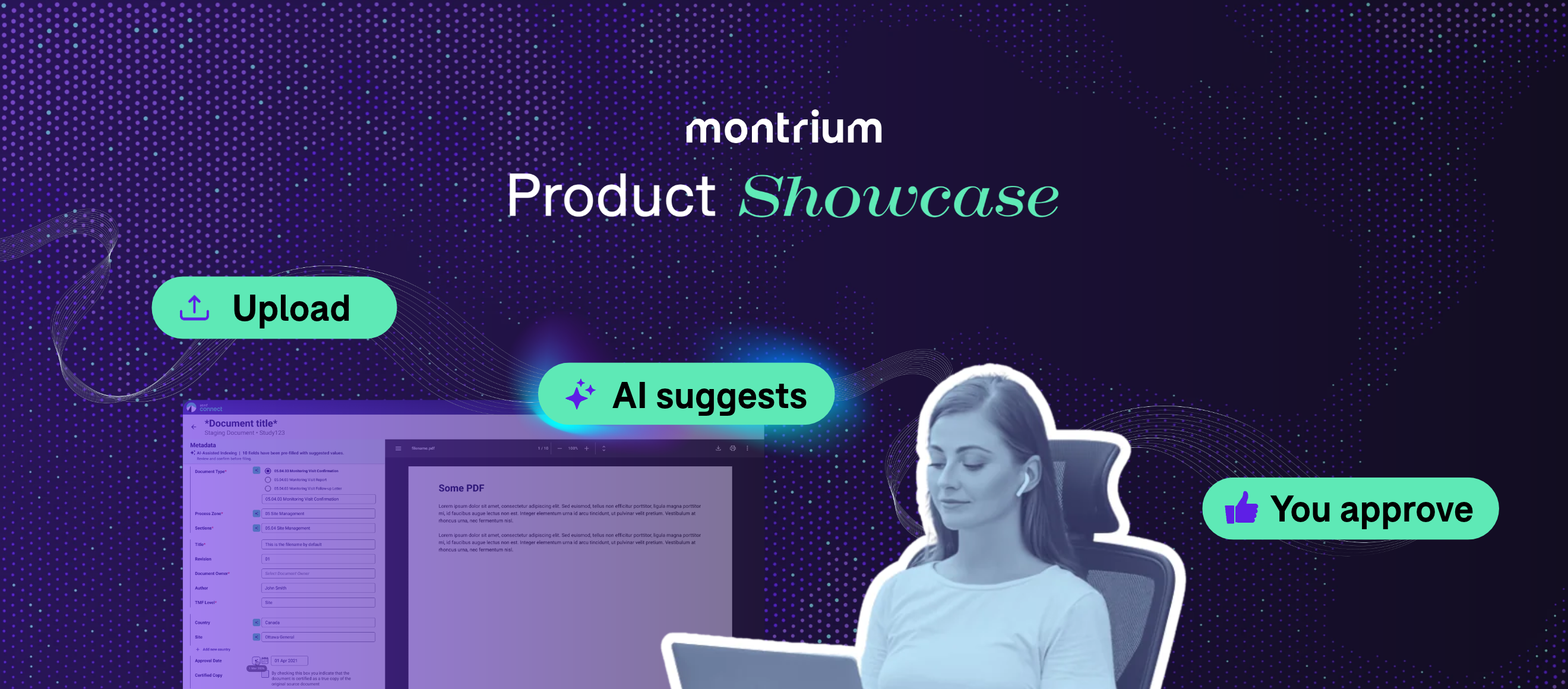


Watch the full product showcase with Bart Budyn and Christina Mantzioros, or read on for the practical guide.
Less busy work, more expertise
We built this feature to take away the busy work, not the judgment.
AI-Assisted Indexing in eTMF Connect reads each document you upload, suggests what it is and where it belongs, and prefills the metadata it finds. You review every suggestion and decide what gets filed. The AI proposes. You decide.
The people who file into a TMF do skilled work. Knowing what a document is, where it belongs and which date matters takes real expertise. Yet much of their day goes to typing the same site and country, scrolling long lists of document types and starting from an empty form, over and over.
We built this feature to take away the busy work, not the judgment. Your team gets time back for the work that needs them: following up with sites, keeping quality high, and making sure the TMF tells the right story when an inspector opens it.
This guide covers how we think about AI at Montrium, how the feature works in daily use, how we tested it, what it is worth, and how to prepare your team.
How we think about AI at Montrium
Our AI is assistive by design. Much of the AI in our space is pitched as automation: let the system file the document, and someone checks it later downstream. We chose not to build that way.
The AI in eTMF Connect never files anything on your behalf. Confirming a value is always a deliberate action by a person. Two reasons drove that decision.
- Accountability: In a regulated setting, accountability for a record belongs with a human. The audit trail records the person who confirmed the metadata, not the AI.
- Trust: When you know nothing happens without you, you rely on the suggestions more readily. That is when the time savings arrive.
We are also releasing AI in phases. Indexing comes first. Each phase shows us how people use the suggestions, where the AI is strong and where users want more control. We feed that back into the next phase. In a regulated industry, we would rather build trust step by step than release everything at once and rework it later.
The principle holds across every phase. The AI does the groundwork. People make the decisions.
This approach reflects what we hear across the industry. In our State of AI in Clinical Quality report, regulatory uncertainty was the most cited barrier to adopting AI, and about half of organizations had no clear owner for AI governance. For more on how we approach it, read AI implementation in regulated TMF environments: what actually works and 6 AI governance practices for clinical trials.
Why we started with indexing
We started with indexing because it came straight out of conversations with our customers. Every document that enters a TMF raises the same questions. What is it? Where does it belong? Is it needed? Which site? Which date counts?
Most of the time the answers are clear. Some of the time they are not. Is this an annual reapproval from an ethics board, or a trial approval? A monitoring visit report, or a follow-up letter? In the current TMF Reference Model, those definitions sit close together, which is one reason the industry is moving toward a new standard model. Two experienced people look at the same document and reasonably reach different answers.
Then add the conditions people work in. An inspection is coming. A stack of records just arrived from a site. New team members are onboarding as the study ramps up. Mistakes happen, and none of it comes from anyone doing a bad job. It is what happens when careful people make thousands of small judgment calls under pressure.
Over time, those small differences add up. The same kind of document ends up in different places across studies and sites. It shows up later as rework, a QC failure or a question during inspection.
So we asked a simple question: What if every document arrived with the groundwork already done?
What the feature does
You stop working out each document from scratch and start checking that the suggestions are right. Behind the scenes, four steps run on every upload.
- Read: The AI reads the document content: what kind of document it is, who issued it, what it covers, its dates, site and country details.
- Match: It checks the document against the TMF Reference Model or your study's file plan.
- Prepare: It suggests a ranked set of document types, with its top pick and close alternatives, plus suggested metadata values.
- Background: It works without blocking you. You keep filling in the form while the AI reads, and it never overwrites what you have already entered.
Why three document types? Some types are close enough that you deserve options. You still pick from the full list whenever none of the three fits.
A few rules shape how it behaves in your workflow.
- No new process: The AI runs inside the indexing form and staging area you already use in eTMF Connect.
- No waiting: Processing runs in the background. You keep working while it reads.
- No overwrites: If you entered a value first, the AI never replaces it. It shows its own suggestion beside yours.
- Clear labels: Every AI-suggested value carries a green icon. Your own entries carry a white icon.
- Nothing saved without you: Suggestions stay proposals until a person confirms them.
The feature handles Word, PDF and PowerPoint files. For any other format, you index the document manually, as you do today.

Indexing a single document
Here is what one document looks like in practice, taken from our live demo. Emma is the document owner on a study called Aurora 204. She drags an ethics committee letter into the staging area.
- Upload as usual: A banner tells Emma the AI is processing the document.
- Keep working: The AI does not block her. She fills in fields the AI does not suggest, such as the title and document owner. She also types a document date of October 8 and a receipt date of October 9.
- Review the suggestions: Seconds later, the banner confirms the fields are prefilled. The AI identifies the document as an IRB/IEC annual reapproval and lists other likely matches beside it.
- Compare where you disagree: Emma's document date stays as she typed it, with a white icon. Hovering over the field shows the AI suggested October 9. The letter is dated October 9, so she applies the suggestion in one click. The same happens with the receipt date: the AI read October 12 from the receipt stamp, and she applies it.
- Change anything: If Emma picks another document type, such as trial approval, the icon turns white. The choice is now hers. She switches back to annual reapproval, and the icon returns to green.
- Save: The document timeline records the metadata update against Emma. Nothing enters the audit trail as an action the AI took on its own.
The AI did the groundwork, and Emma made every decision.
Indexing a batch from a site visit
Documents rarely arrive one at a time, and batch indexing is where the feature saves the most effort. A CRA returns from a site visit with a stack: a monitoring visit report, a follow-up letter, an informed consent form and a site delegation log update. Four document types, written by different people in different formats, all from the same study, country and site.
Until now, batch indexing meant typing those shared details yourself, then working out each document type one by one. With AI-Assisted Indexing, the AI reads each document and picks up both what is unique to it and what the documents share.
- Upload the batch: Emma uploads all four: The AI processes them at the same time.
- Enter only what the AI cannot know: In the edit common metadata screen, she skips country and site, since the AI reads those from each document. She enters the document owner for all four. That is it.
- Step through each document: The monitoring visit report arrives with its type, country and site suggested. Emma remembers the visit as October 7 and overrides the date. Hovering shows the AI read October 8. The report confirms October 8, so she applies the suggestion.
- Confirm the rest: The follow-up letter, consent form and delegation log each arrive with type, country, site and date suggested. Emma checks each against the preview.
- File once every document has a check mark: A green check mark appears in the left panel as Emma opens each document. You cannot save and file the batch until a person has opened and reviewed every AI-processed document.
That last rule is deliberate. It keeps a person in the loop for every document, even in a batch.
The process works like a playlist: you move from document to document and confirm each suggestion against its content.
How we tested it
In our industry, saying a tool works is not enough. You need to know how we know. We tested AI-Assisted Indexing in four steps.
- A representative document set: Our subject matter experts assembled TMF documents across a wide range of document types, with the variation in format and quality you see in real studies.
- Consistent tests: The same cases run the same way every time, so we repeat the test and compare results over time.
- Side-by-side comparison: Every AI suggestion was set against the original filing decision.
- Expert review of every disagreement: When the AI and the original filing differed, we did not assume the original was right. Specialists reviewed the document again and decided the correct answer.
The fourth step matters most. With gray-zone artifacts, the original filing is not always correct. Testing against it blindly would only measure how well the AI copies old habits. We wanted to know whether the AI gets it right. In some cases, our experts sided with the AI.
In our testing, the correct document type appeared among the AI's three suggestions over 90% of the time. Suggested metadata values were correct over 85% of the time.
The AI will not be right every time. That is exactly why a person reviews every suggestion before anything is filed.
What it is worth
At 10,000 documents a year, AI-Assisted Indexing saves about 500 hours, worth roughly $33,000 in staff time. The calculation is simple.
| Input | Value |
|---|---|
| Average time to index a document today | 4 minutes |
| Time to review AI suggestions | about 1 minute |
| Time saved per document | about 3 minutes |
| Documents per year (assumption) | 10,000 |
| Loaded cost per hour (assumption) | $65 |
| Annual time saved | about 500 hours, or $32,500 |
The four-minute average comes from our own platform data. Some documents get indexed as soon as they arrive, and those go quickly. Many others sit in the staging area for a long time. When someone finally opens them, they have to read the document again and rebuild its context, and those take much longer. Four minutes is the average across both.
The one-minute review time is an estimate. Some documents take less, some take more, depending on their content. Your account team will rerun these figures with your own volume and loaded cost.
Time is one part of the value. Fewer reclassifications, fewer revisions and a cleaner TMF at inspection are harder to put a number on, and they matter as much.
Questions we hear most
Do you train the AI on our documents?
No. We use a hosted frontier model from OpenAI, and we do not train or fine-tune it on customer data. What we build and refine is a prompt package based on the TMF Reference Model. When the new standard model is released, we will update the prompt package to match.
Does the AI check document quality, such as blank pages or missing signatures?
Not in this first release. Quality checks are the focus of our next phase, AI-Assisted QC.
Does it help with TMF completeness?
Yes, indirectly, today. Documents that sit in the staging area for weeks are not filed and do not fill your expected documents. Faster indexing moves them into the TMF sooner. Cross-checks between documents, such as a delegation log against staff CVs, are on our roadmap.
How does this affect our audit trail and Part 11 or Annex 11 compliance?
The AI only suggests. Nothing is saved until a user confirms it, and the audit trail records that user. Electronic record and signature requirements stay covered by the existing qualified functionality of eTMF Connect.
How is it offered?
AI-Assisted Indexing is an optional add-on, based on annual credits. Credits apply across your whole environment rather than per study, and you add more at any time. Your account team will size the credits to your volume.
Where we go next
Indexing is the foundation. Once the AI understands what a document is and where it belongs, it helps reviewers focus on what needs a second look.
- AI-Assisted QC: Checks against ALCOA++ principles. Does the document call for a signature, and is one present? Are there blank pages?
- Anomaly detection: Spotting patterns across the TMF that look out of place, so they surface early rather than during an inspection. Take a site delegation log: the AI would check that every listed staff member has a valid CV, medical license and training record, with no gaps.
Each phase follows the same principle. The AI does the groundwork. People make the decisions. Your feedback on this first release shapes what we build next, so tell us where the suggestions help and where you want more control.
To see AI-Assisted Indexing on your own document types, book a demo or contact your Montrium account team. For the full feature set, see eTMF Connect features.